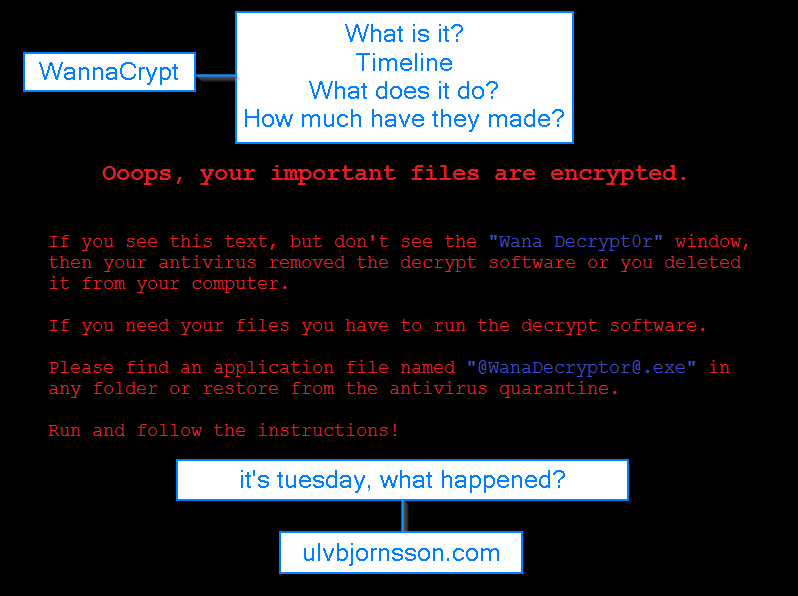
WannaCrypt – What is it?

What is WannaCrypt?

  • A large Ransomware campaign that spread across the world.
  • The attack used a vulnerability that was patched in March 2017 Security Update (MS17-010, SMBv1)
  • How can I mitigate WannaCrypt?

Timeline

August 2016
The Shadow Brokers attempt to auction NSA tools

September 2016
Microsoft encourages users to stop using SMB1

March 2017
Microsoft releases Security Update to address the MS17-010 for SMB1 vulnerability

April 2017
The Shadow Brokers release the toolbox

  • Includes SMB (Eternal Blue) and the Trojan Code (Double Pulsar)
  • Microsoft releases an advisory that no new vulnerabilities are found in Shadow Brokers release

May 2017
WannaCrypt is released by unknown attacker
Which utilizes [ETERNALBLUE] with [DOUBLE PULSAR] and a ransomware payload that demands 300-600 USD in Bitcoins from its infected hosts.

What does WannaCrypt do?

Infects

It attacks through [ETERNALBLUE] if MS17-010 is not installed.
Installs the Trojan if the attack is successful [DOUBLEPULSAR]

Encrypts

Encrypts 179 file types
Shows a message that demands for payment of 300$-600$ in bitcoins to a listed wallet.
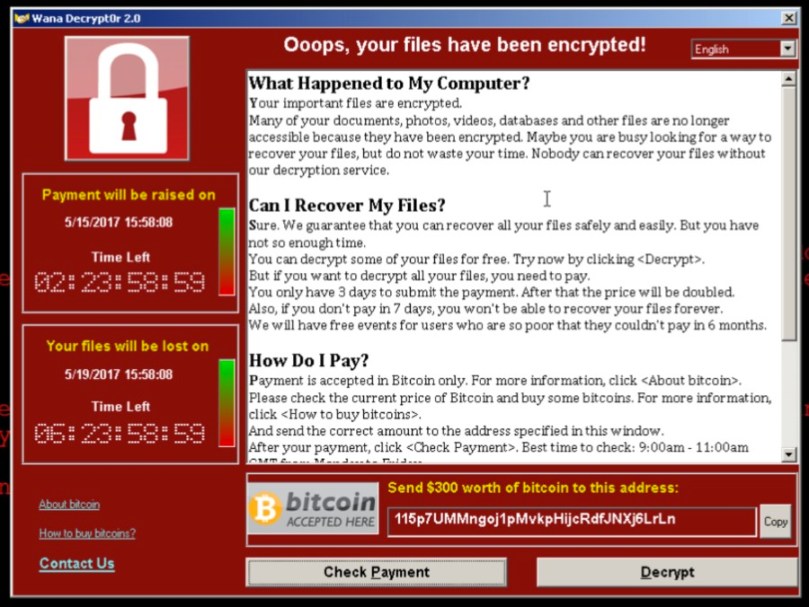
WannaCrypt.jpg

Spreads

It scans the local LAN and wider internet for port 445
Attempts to infect over SMBv1 [ETERNALBLUE] if port is open.

Payments

We find references to three different wallets these are:

115p7UMMngoj1pMvkpHijcRdfJNXj6LrLn 73 transactions, total of 17460 USD
13AM4VW2dhxYgXeQepoHkHSQuy6NgaEb94 98 transactions, total of 26570 USD
12t9YDPgwueZ9NyMgw519p7AA8isjr6SMw 82 transactions, total of 23450 USD

Which gives the attackers wallet a total of 67480 USD (14:00 GMT 16.05.17)

Curious of how to mitigate it, or want to read how to disable the SMBv1 vulnerability or patch it? Check out my previous article on mitigation.

As always, if you have suggestions on topics you want to read more about, or feedback. Leave a comment or tweet me at UlvBjornsson
WannaCrypt – What can I do to mitigate?

Let’s try to reduce the attack vectors, I’ll walk you through the practical remedies and reduction of attack vectors you can do; now.

Turn off SMB 1

Why? Because WannaCry utilizes the exploit, and unless you are on XP or 2003, you have no use for SMB1, and will be using SMB2/SMB3.
To disable SMBv1 on the SMB server, run the following cmdlet:

Windows 8 and Windows Server 2012

Set-SmbServerConfiguration -EnableSMB1Protocol $false

Windows 7, Windows Server 2008 R2 and Windows Vista

Set-ItemProperty -Path “HKLM:\SYSTEM\CurrentControlSet\Services\LanmanServer\Parameters” SMB1 -Type DWORD -Value 0 -Force

4014204_en_1.png
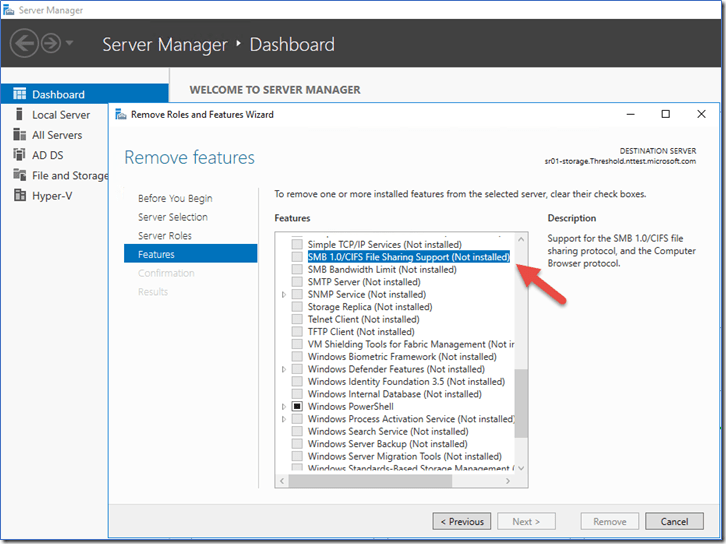
You can also remove it with “Server Manager” or use this snippet:

Remove-WindowsFeature FS-SMB1

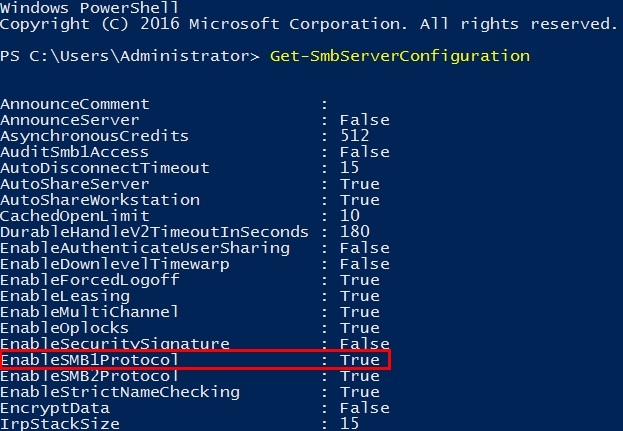
If you want to check whether or not SMB 1.0 is active on your server you can run:

Get-SmbServerConfiguration

 get-smbserverconfiguration-enablesmb1protocol.png

As you can see it states that EnableSMB1Protocol is currently True we want to set this to False.

We can accomplish this by running the following snippet:

Set-SmbServerConfiguration -EnableSMB1Protocol $false -Force’ cmdlet, as shown below.

set-smbserverconfiguration-enablesmb1protocol-false.png
(Force is added to prevent it from pausing for confirmation, and run through.)

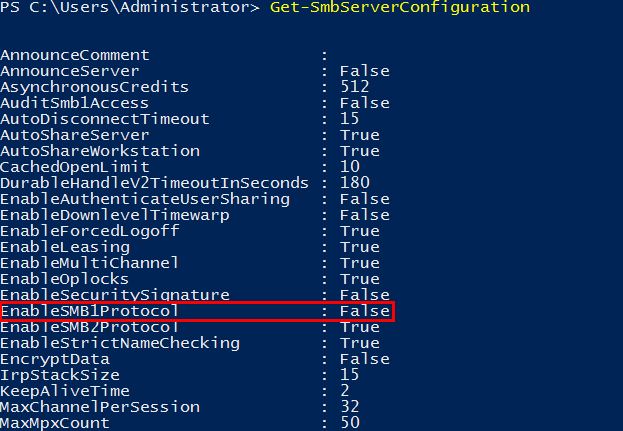
Let’s run this again to see if the configuration changed:

Get-SmbServerConfiguration

It is now set to false.

get-smbserverconfiguration-enablesmb1protocol-false.png

Patch your clients and servers.

WannaCrypt takes advantage of the MS17-010 vulnerability also known as the SMBv1 vulnerability, thankfully it has been patched with MS17-010. Depending on your patch regime, you should expedite and ensure that this patch goes through.

If your systems have been affected; DOUBLEPULSAR will have also been installed, so this will need to also be removed. A script is available (by COUNTERCEPT) that can remotely detect and remove the DOUBLEPULSAR backdoor.

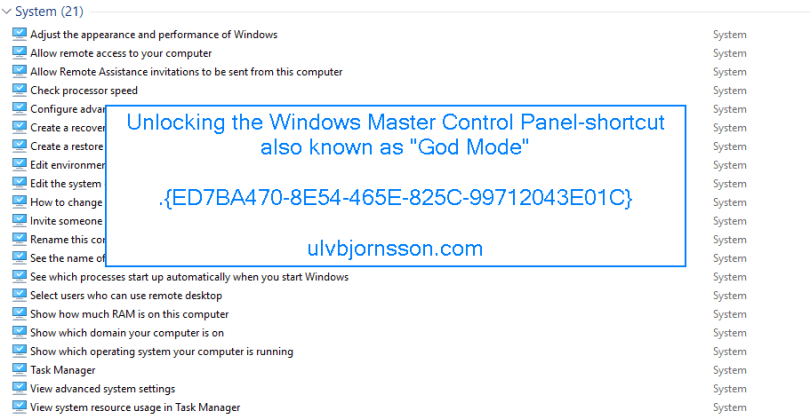
Creating a Windows Master Control Panel shortcut .{ED7BA470-8E54-465E-825C-99712043E01C}

The Windows Master Control Panel, also known as Windows God Mode, or the All Tasks folder is a shortcut to access a variety of control settings found in any operating system later then Windows Vista.

It is one of those stories that hits the blogosphere and spins; however the background for the registry key “ED7BA470-8E54-465E-825C-99712043E01C”  was actually just an “All Tasks“-page created by Windows developers to make it easier to find what was needed.

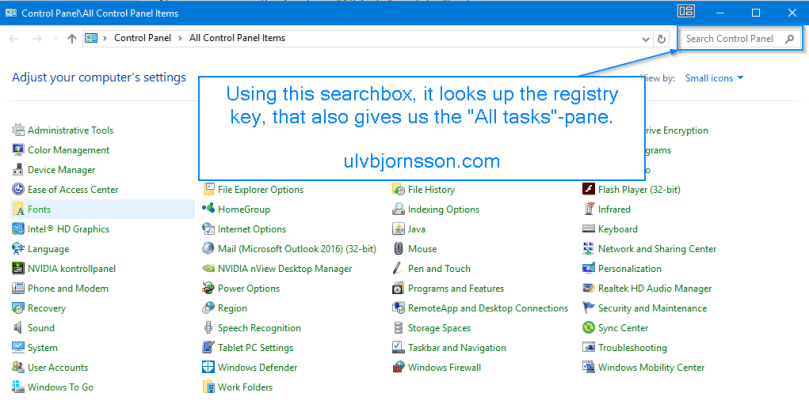
So if you use the search box in the “Control Panel“-window, see illustration below. It will leverage the key “ED7BA470-8E54-465E-825C-99712043E01C“.

2017-05-12_16-09-47.png

The key that it looks up you can find it under:
HKEY_CLASSES_ROOT\CLSID\{ED7BA470-8E54-465E-825C-99712043E01C}

2017-05-12_16-15-03.png

So now let’s create and give you a shortcut to the blogosphere’s godmode, or the Windows developers “All Task”-folder.

Read More »

Allow Domain User To Update Department Field in Active Directory

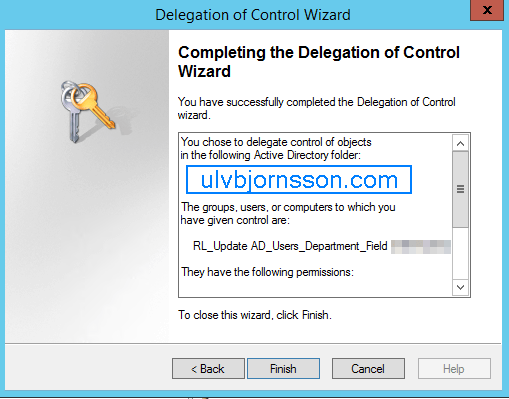
In this article we’ll go through the steps to allow a domain user that is a member of a security group, to update the Department field in Active Directory

So open up Active Directory Users and Computers and create a Security Group that we will delegate control to, for this example we have created a group called “RL_Update_AD_Users_Department_Field”

pep

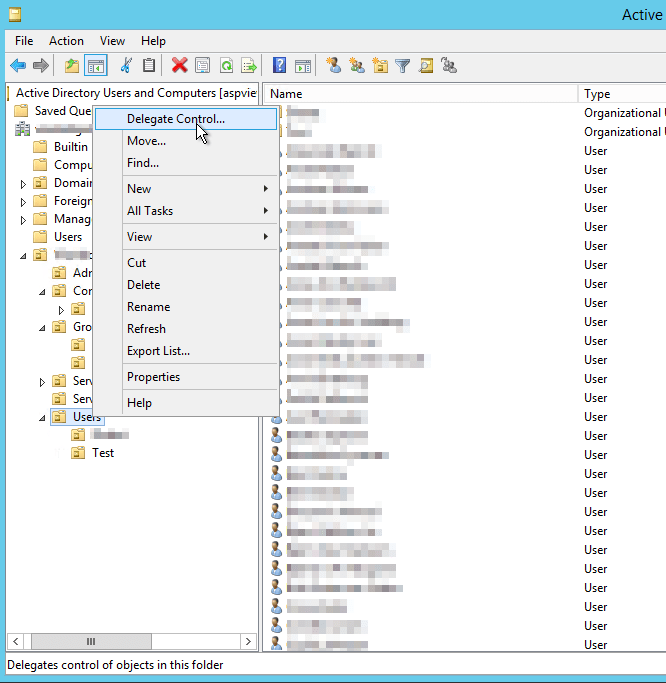
Now we have to also choose the container that this group can edit Users in to for this example we have a “Users”-container in our “domain“.

RoyalTS_2017-05-08_13-58-06

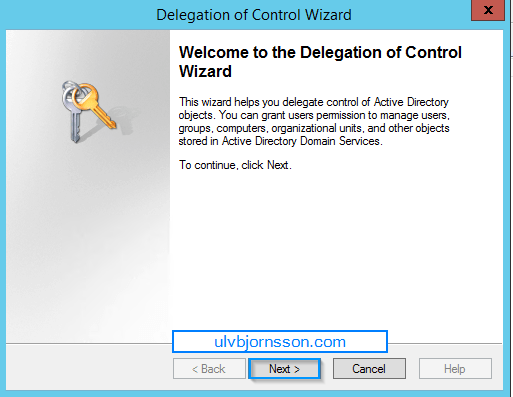
This opens up the Delegation of Control Wizard. Hit Next.

2017-05-08_14-11-21

Read More »

Allow Domain User To Update Manager Field in Active Directory

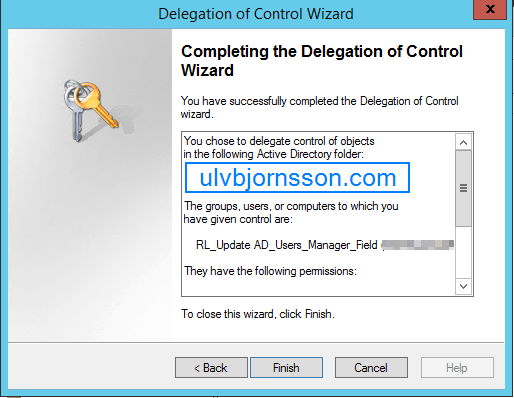
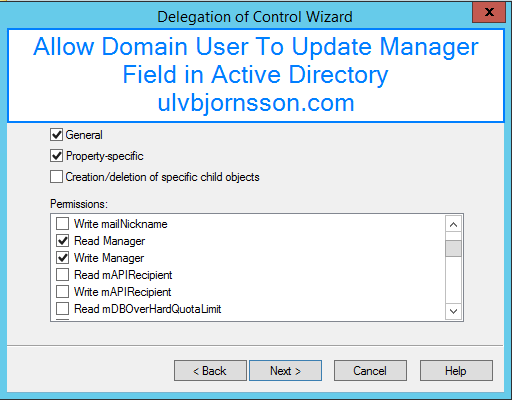
In this article we’ll go through the steps to allow a domain user that is a member of a security group, to update the manager field in Active Directory.

So open up Active Directory Users and Computers and create a Security Group that we will delegate control to, for this example we have created a group called “RL_Update_AD_Users_Manager_Field”


Now we have to also choose the container that this group can edit Users in to for this example we have a “Users”-container in our “domain“.

RoyalTS_2017-05-08_13-58-06.png

This opens up the Delegation of Control Wizard. Hit Next.

2017-05-08_12-30-50

Read More »

Allow Domain User To Add Computer to Domain

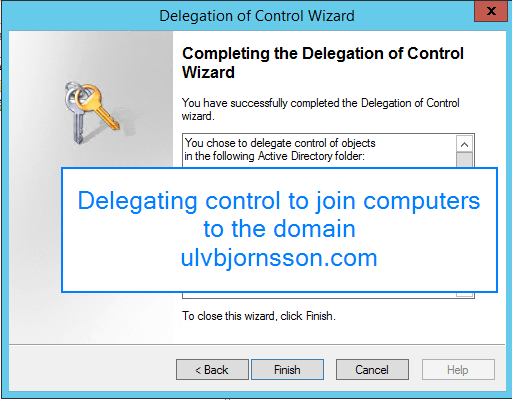
In this guide we’ll go through the steps to allow a domain user, to add a computer to the domain. This can be nice in scenarios where some of the preparation for a PC is done by office staff, or if there are branch offices that need to re-join after resetting a PC and so-on.

An authenticated user, has by default the right to join up to 10 computers to the domain. After exceeding this limit the user will recieve an error message.

To get around this we can delegate the right to Create Computer Objects in Active Directory. This ensures that there is no restriction on number of computer objects that the user with this delegation right can add to the domain.

The best way of achieving this is by delegating control to a “Security Group” that we create in “Active Directory”

Delegating rights to User/Group with Active Directory Users and Computers

Read More »

Installing VMware Identity Manager Connector

Hi again, and now we’ll go through how you install a VMware Identity Manager Connector.

First off with the prerequisites and some data you need to have to proceed through this guide:

You will need:

  • VMware Identity Manager-tenant
  • OVA-file (the VMware Identity Manager Connector software)
  • Set up a DNS record
  • Service Accounts: for binding to LDAP and domain joining the Connector
  • Connector activation code (which we gather from our VMware Identity Manager-tenant)

Read More »

Setting up AirWatch for Integration with Identity Manager: Part 2

Configure AirWatch settings in VMware Identity Manager to integrate AirWatch with VMware Identity Manager and enable the AirWatch feature integration options. The AirWatch API key and the certificate are added for VMware Identity Manager authorization with AirWatch.

Now if you are just jumping into this series, you need to know that you require to have this in place to complete the steps outlined here. If you haven’t you can check out Part 1.

  • AirWatch server URL that the admin uses to log in to the AirWatch admin console.
  • AirWatch admin API key that is used to make API requests from VMware Identity Manager to the AirWatch server to setup integration.
  • AirWatch certificate file used to make API calls and the certificate password. The certificate file must be in the .p12 file format.
  • AirWatch enrolled user API key.
  • AirWatch group ID for your tenant, which is the tenant identifier in AirWatch.


Read More »

Setting up AirWatch for Intergation with Identity Manager: Part 1

First off ensure you have this in place:

  • The organization group in AirWatch that you are configuring VMware Identity Manager is organization type: Customer.
  • REST API admin key for communication with VMware Identtiy Manager service and a REST enrolled user API key for AirWatch Cloud Connector password authentication are made at the same organization group where VMware Identity Manager is configured.
  • API Admin account settings and the admin auth certificate from AirWatch added to the AirWatch settings in the VMware Identity Manager admin console.
  • Active Directory user accounts set up at the asme organization group where  VMware Identity Manager is configured.
  • If end users are placed into a child organization group from where VMware Identity Manager is configured after registration and enrollment, User Group mapping in the AirWatch enrollment configuration must be used to filter users and their respective devices to the appropriate organization group.

You can find these in your AirWatch Admin console:

  • REST admin API key for communication: System -> Advanced -> API -> REST API
  • API Admin account for VMware Identity Manager and the admin auth certificate that is exported form AirWatch and added to the AirWatch settings in VMware Identity Manager.
  • REST enrolled user API key used for AirWatch Cloud Connector password authentication.


Read More »