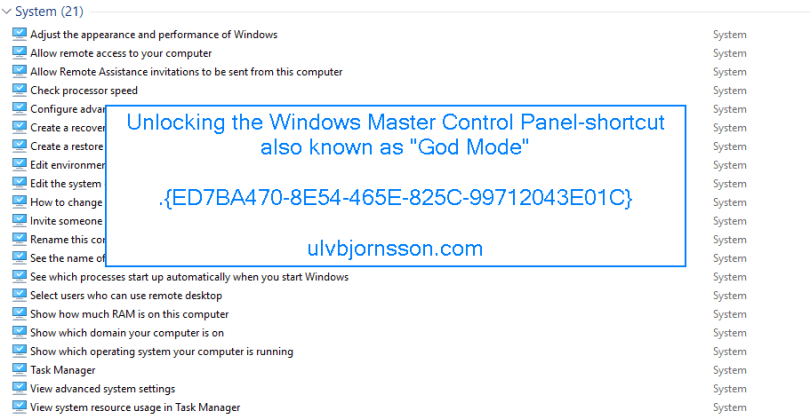
The Windows Master Control Panel, also known as Windows God Mode, or the All Tasks folder is a shortcut to access a variety of control settings found in any operating system later then Windows Vista.
It is one of those stories that hits the blogosphere and spins; however the background for the registry key “ED7BA470-8E54-465E-825C-99712043E01C” was actually just an “All Tasks“-page created by Windows developers to make it easier to find what was needed.
So if you use the search box in the “Control Panel“-window, see illustration below. It will leverage the key “ED7BA470-8E54-465E-825C-99712043E01C“.
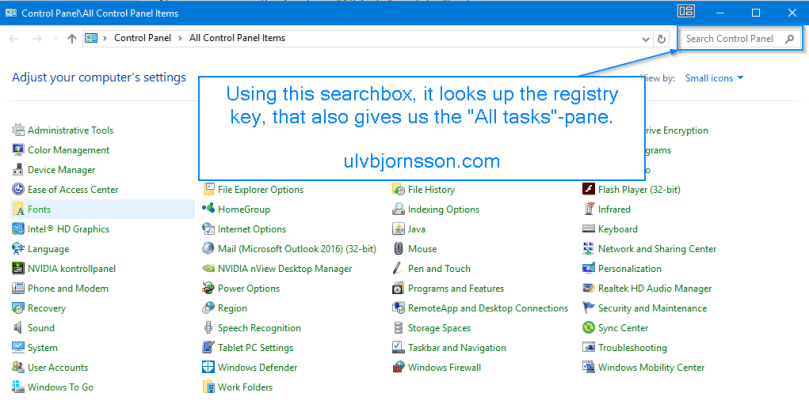
The key that it looks up you can find it under:
HKEY_CLASSES_ROOT\CLSID\{ED7BA470-8E54-465E-825C-99712043E01C}

So now let’s create and give you a shortcut to the blogosphere’s godmode, or the Windows developers “All Task”-folder.
Make a new folder, you can place it anywhere and re-name the folder to the following string “Settings.{ED7BA470-8E54-465E-825C-99712043E01C}” where “Settings” can be anything you’d like to call it.
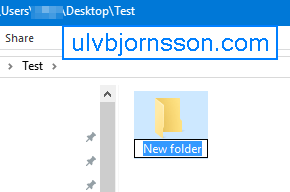
As you can see, the icon changes:
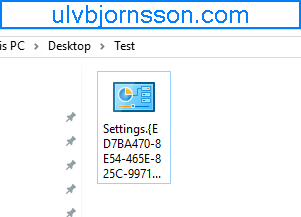
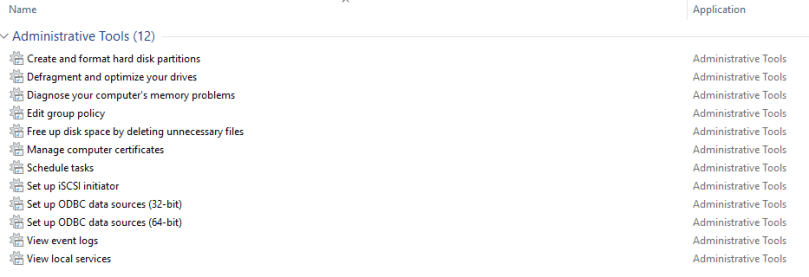
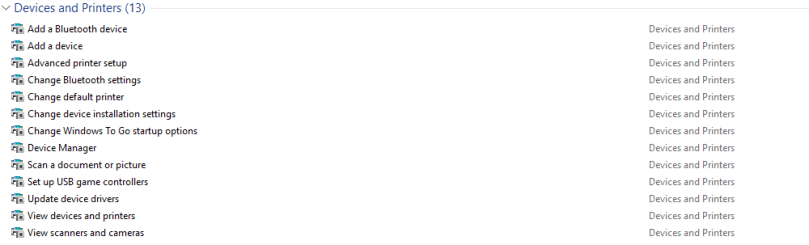
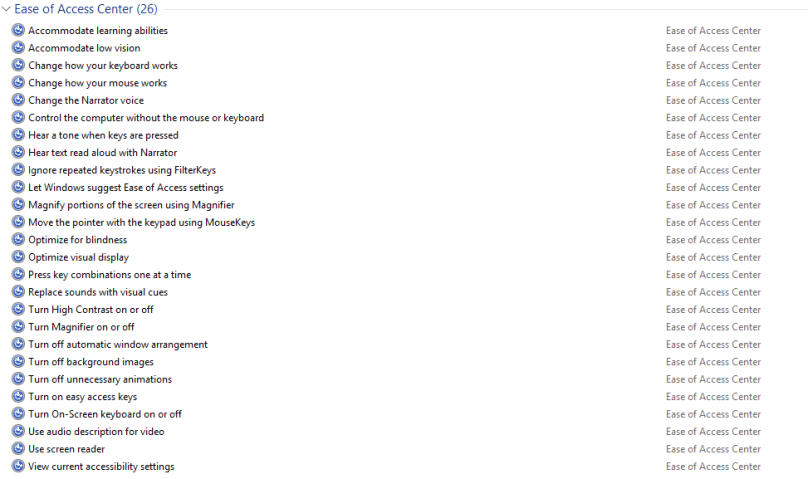
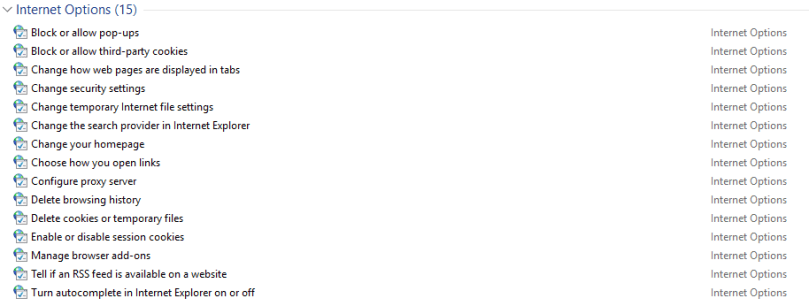
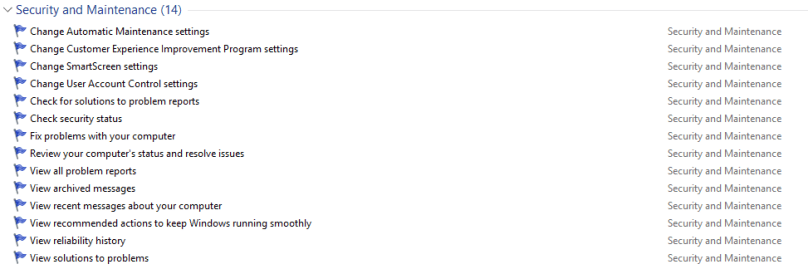
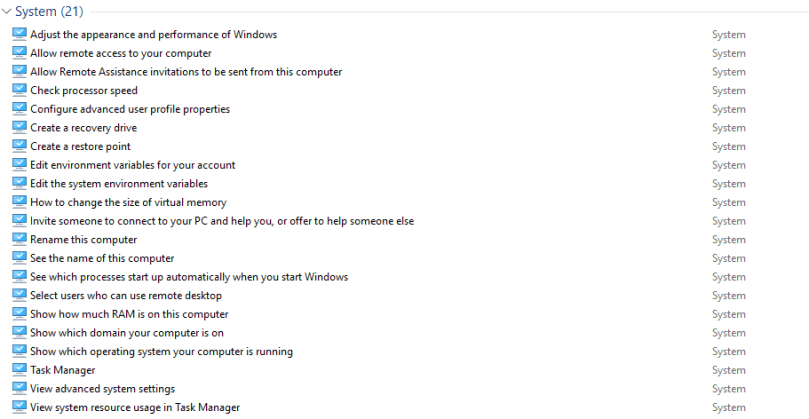
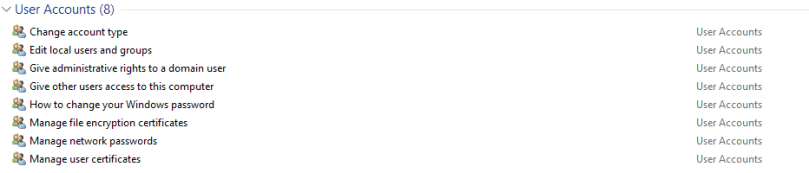
And when we open it, this is what we now get access to in a single pane.
Full list:
- Administrative Tools
- AutoPlay

- Backup and Restore

- BitLocker Drive Encryption

- Color Management

- Credential Manager

- Date and Time

- Default Programs

- Devices and Printers
- Display

- Ease of Access Center
- File Explorer Options

- File History

- Fonts

- HomeGroup

- Indexing Options

- Infrared

- Internet Options
- Keyboard

- Language

- Mouse
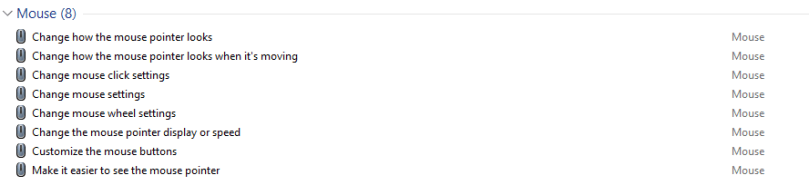
- Network and Sharing Center
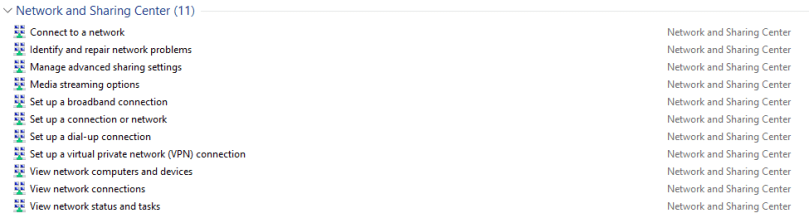
- Pen and Touch

- Personalization

- Phone and Modem

- Power Options
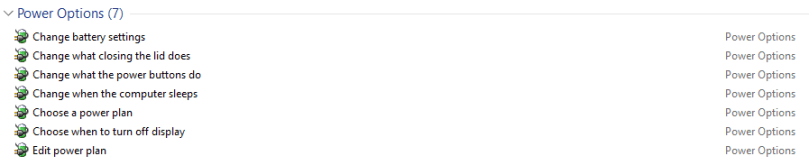
- Programs and Features
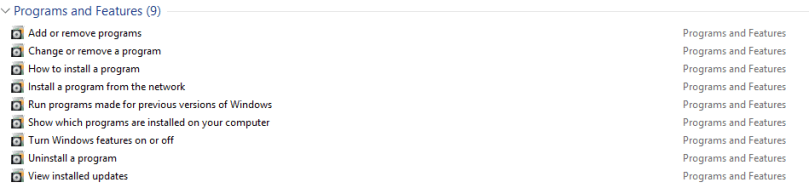
- Region

- RemoteApp and Desktop Connections

- Security and Maintenance
- Sound

- Speech Recognition

- Storage Spaces

- Sync Center

- System
- Tablet PC Settings

- Taskbar and Navigation

- Troubleshooting

- User Accounts
- Windows Defender

- Windows Firewall

- Windows Mobility Center

- Work Folders

That’s it, you now have a shortcut to the “All Tasks“-folder. Let me know in the comments, or tweet me at @UlvBjornsson what kind of articles you want to read.
 musings of a consultant